1. Installation & Configuration
qteasy is a fully localized deployment and operation of quantitative trading analysis toolkit, with the following functions:
Financial data acquisition, cleaning, storage, processing, visualization, and use
Quantitative trading strategy creation, and provide a large number of built-in basic trading strategies
Vectorized high-speed trading strategy backtesting and trading result evaluation
Optimization and evaluation of trading strategy parameters
Deployment and live operation of trading strategies
Here is a series of tutorials to help you understand the main functions and usage of qteasy through a series of practical examples.
qteasy is created using python, and uses a vectorized backtesting and trading simulation engine to achieve high-speed backtesting of strategies, while also taking into account the flexibility of the strategy framework, allowing users to customize various advanced strategies as needed. qteasy provides a variety of strategy parameter optimization algorithms to help optimize and evaluate trading strategies, and provides real-time operation mode, allowing trading strategies to be directly deployed and used.
1.1. Preparation before installing qteasy
Create installation environment
qteasy can be installed via pip. Since there are many dependent packages, to avoid conflicts between the dependent packages and the packages in the existing environment, it is recommended to create an independent python environment to install qteasy.
Here are two methods to create a virtual environment, using venv and conda respectively:
Users of macOS and Linux can open the terminal, enter the path where you need to create the environment, and enter the following command to create a virtual environment named qteasy-env in the current directory and activate the environment:
python -m venv qteasy-env
source qteasy-env/bin/activate
Windows users can open the command prompt, enter the folder where you need to create the environment, enter the following command to create a virtual environment and activate it:
py -m venv qteasy-env
.venv\Scripts\activate
Users can open the terminal, enter the following command to create a virtual environment named qteasy-env and activate the environment:
conda create -n qteasy-env python=3.8
conda activate qteasy-env
Use the following command to install qteasy in the activated virtual environment:
pip install qteasy
Install MySQL database (optional)
qteasy can manage a large amount of financial data. The way qteasy works is to download all financial data to the local machine, clean it, and store it in a predefined data table. When needed (generating K-line charts, generating trading signals, simulating trading backtesting, trading result evaluation, etc., all links require financial data), the required data is read directly from the local data source. Therefore, a data management environment must be set up locally.
qteasy supports both databases and file systems as data management environments. Considering the amount of financial data, it is strongly recommended to use a database as a local data source. The local data sources supported by qteasy include:
Use
csvfile as the default data source. It takes up a lot of space, but you can use Excel to read local data. It is slow when the data volume is largeHighly recommended to use
mysqldatabase and ensure that the disk has at least 1TB of storage space, which is fasthdf5file takes up a lot of space, and is slow when the data volume is largefeatherfile takes up less space, and is slow when the data volume is large
To achieve the best data storage efficiency, it is recommended to use mysql database as the local data source.
If you need to use a database as a local data source, refer to the following method to install MySQL database. If you use a file as a local data source, you can skip this step.
You can directly find the community open source version for download on the official website: The website provides a variety of different installation methods such as dmg and tar, and there are also versions available for the Apple M1 chip:
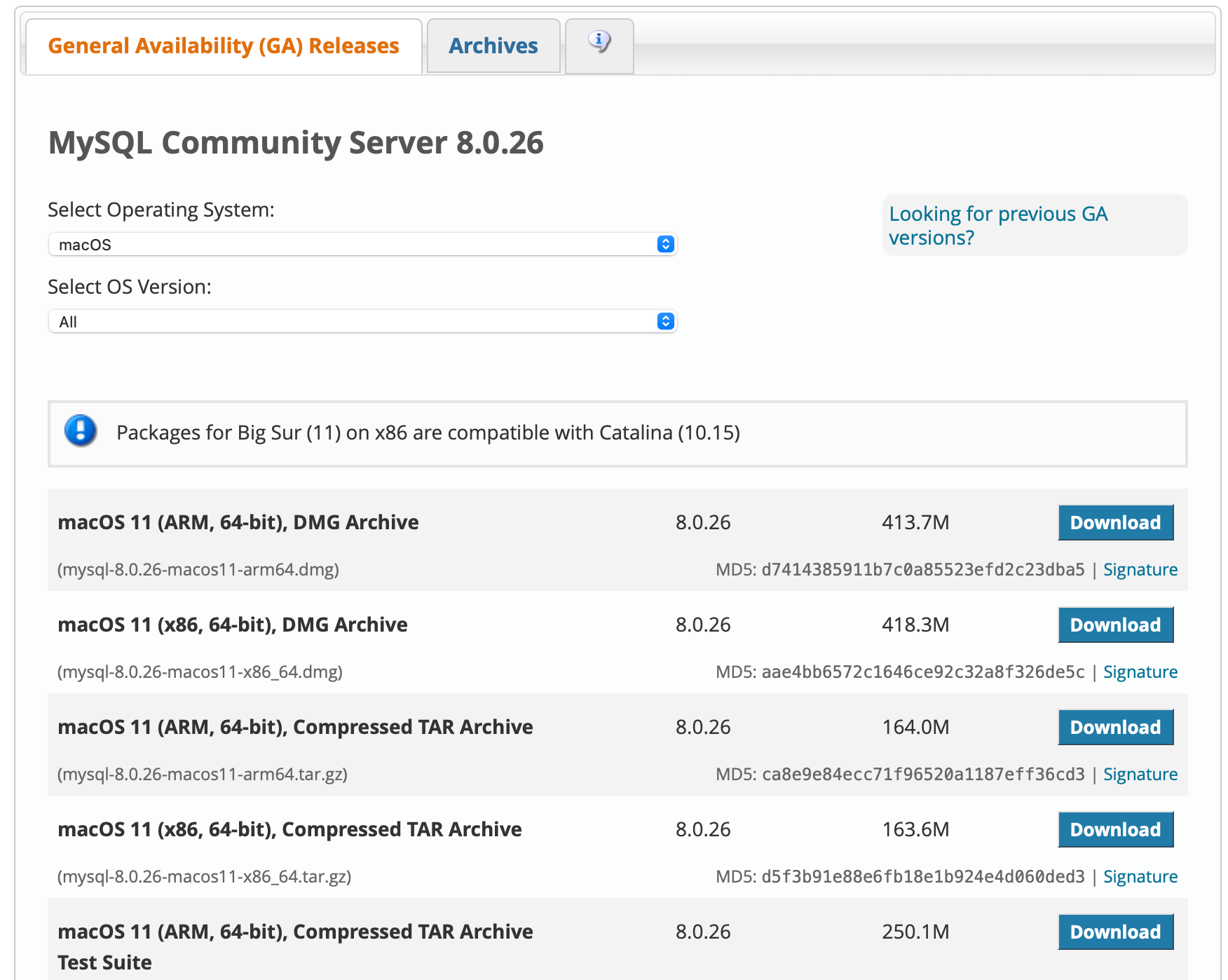
Install the database, create a user, set the access method, and set the password:
# 创建新的用户,并允许客户通过localhost连接
mysql> CREATE USER '用户名'@'localhost' IDENTIFIED BY '初始密码';
Query OK, 0 rows affected (0.46 sec)

# 设置用户的权限
mysql> GRANT ALL ON *.* TO '用户名'@'localhost';
Query OK, 0 rows affected (0.06 sec)

# 创建新的用户,并允许客户通过远程连接
mysql> CREATE USER '用户名'@'%' IDENTIFIED BY '初始密码';
Query OK, 0 rows affected (0.46 sec)

# 设置用户的权限
mysql> GRANT ALL ON *.* TO '用户名'@'%';
Query OK, 0 rows affected (0.06 sec)
The database is set up, qteasy will automatically create database tables and store financial data in the database.
Install pymysql
pip install pymysql
How to create a tushare account and get the API token (optional)
qteasy can obtain financial data from multiple different network financial data providers, clean, organize, and save them in a local database after they are consistent.
Although qteasy is constantly adding financial data acquisition channels, it still mainly relies on tushare. The system has a relatively complete tushare interface API. Since the tushare interface requires permissions or points, it is recommended that users prepare the corresponding tushare points in advance and open the corresponding permissions.
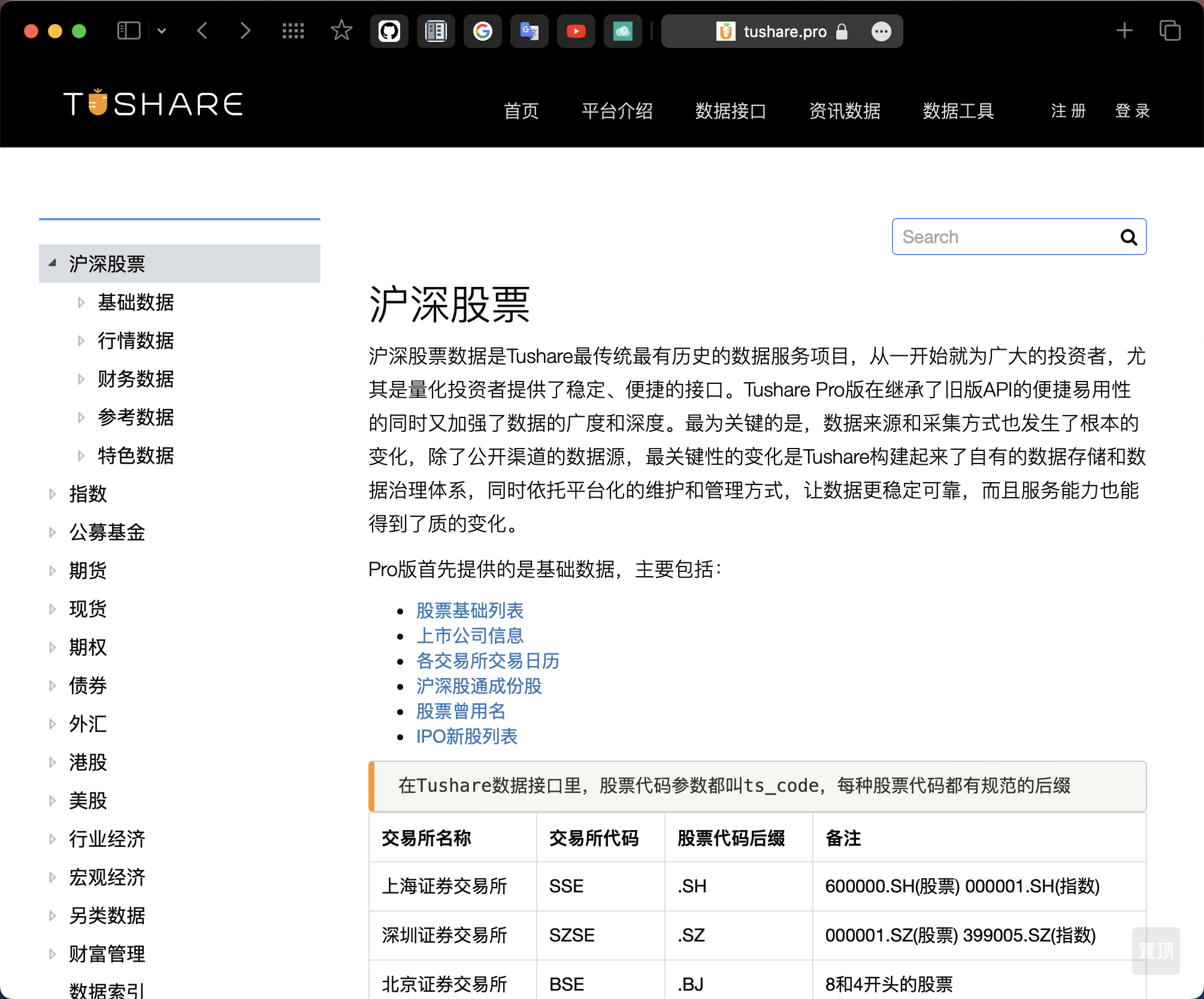
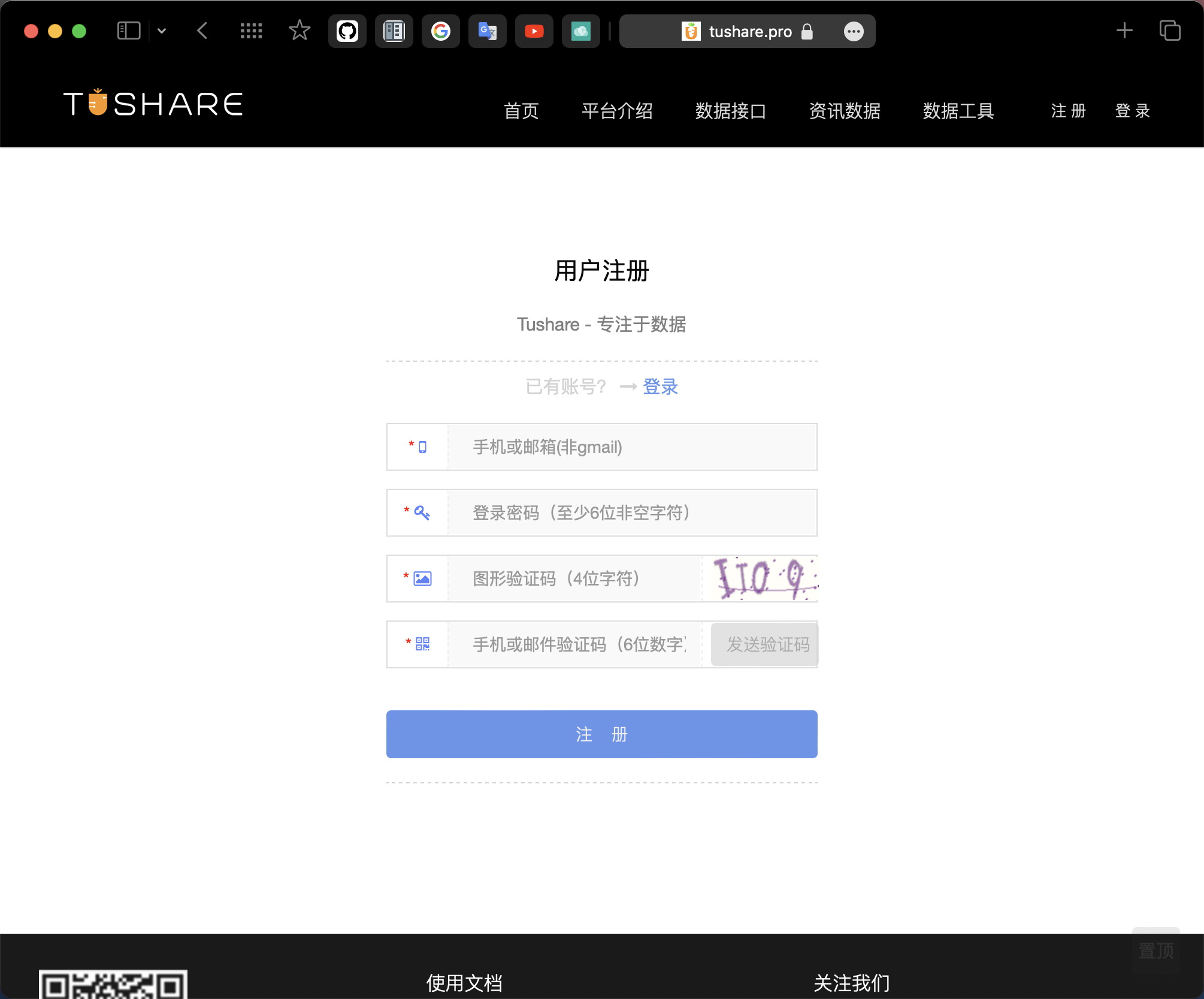
For the method of registering a tushare account and permissions, please refer to the tushare pro homepage:
If you do not create a tushare account, qteasy can still obtain some data, but the types of data are very limited, and the access frequency and number of requests are also restricted. The use of many qteasy features will be limited, as shown in the figure below:
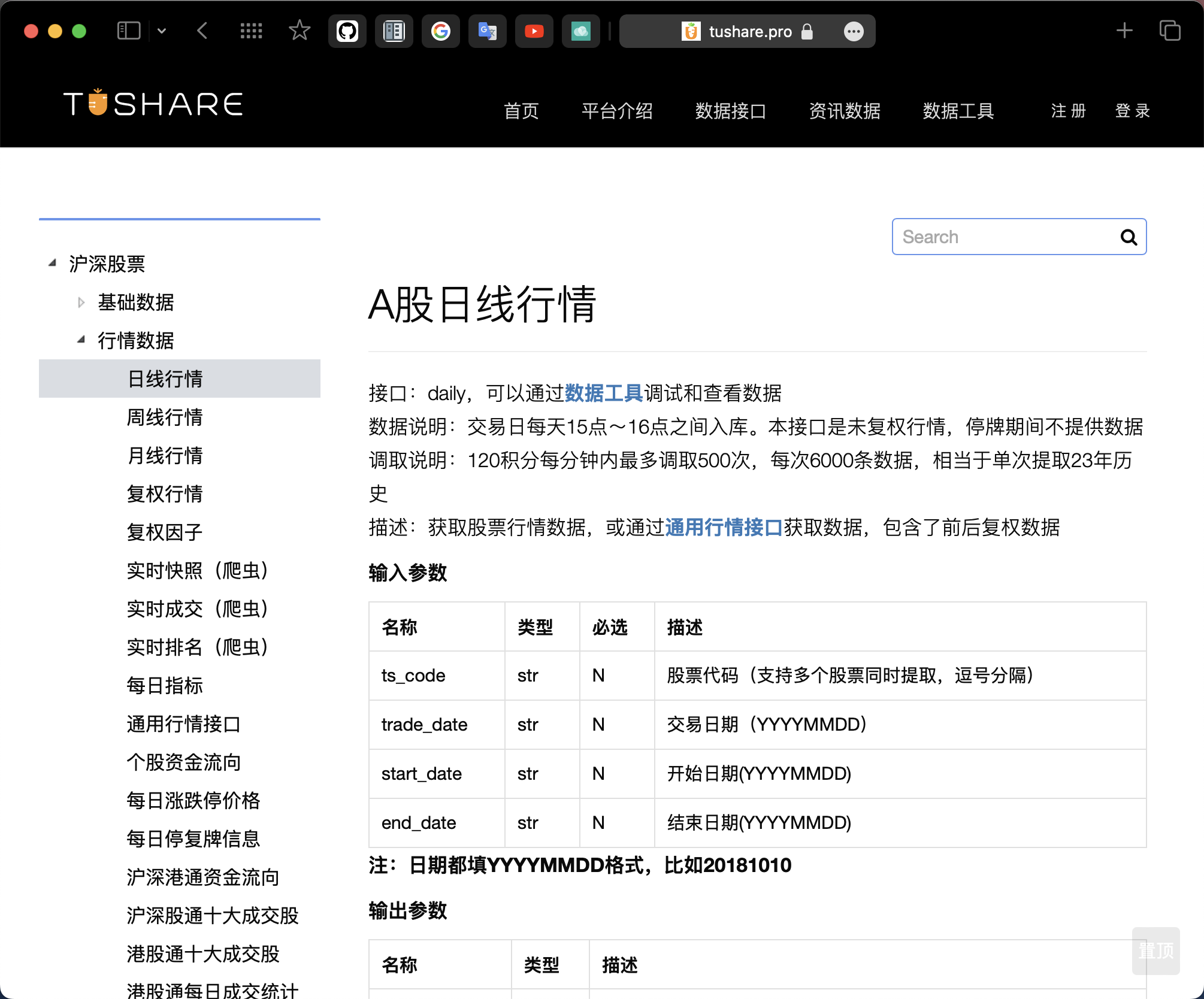
Currently, some high-frequency financial data can be obtained for free through akshare or East Money, and more data obtained through other network channels will be added in future version updates.
Install TA-lib (optional)
qteasy内置了大量的技术指标,这些技术指标的计算依赖于TA-lib,如果需要使用qteasy内置的所有技术指标,需要安装TA-lib。
如果跳过这一步,将只能使用以下内置策略,这里有完整的内置策略清单及详细说明参考文档以及内置交易策略回测结果:
ID |
Strategy name |
Instructions |
|---|---|---|
crossline |
TimingCrossline |
crossline timing strategy class, using the cross of long and short moving averages to determine the long and short states |
macd |
TimingMACD |
MACD timing strategy class, using the MACD moving average strategy to generate the target position percentage: |
dma |
TimingDMA |
DMA timing strategy |
trix |
TimingTRIX |
TRIX timing strategy, using the triple-smoothed exponential moving average price of the stock price for long and short judgment: |
ssma |
SCRSSMA |
Single moving average cross strategy - SMA moving average (simple moving average): set the position ratio based on the relative position of the stock price and the SMA moving average |
sema |
SCRSEMA |
Single moving average cross strategy - EMA moving average (exponential smoothing moving average): set the position ratio based on the relative position of the stock price and the EMA moving average |
dsma |
DCRSSMA |
Double moving average cross strategy - SMA moving average (simple moving average): |
dema |
DCRSEMA |
Double moving average cross strategy - EMA moving average (exponential smoothing moving average): |
slema |
SLPEMA |
Moving average slope trading strategy - EMA moving average (exponential smoothing moving average): |
signal_none |
SignalNone |
Empty trading signal strategy: a strategy that does not generate any trading signals |
sellrate |
SellRate |
Change rate sell signal strategy: when the change rate of the price exceeds the threshold, a sell signal is generated |
buyrate |
BuyRate |
Change rate buy signal strategy: when the change rate of the price exceeds the threshold, a buy signal is generated |
Long |
TimingLong |
Simple timing strategy, fixed long position throughout the entire historical period |
short |
TimingShort |
Simple timing strategy, fixed short position throughout the entire historical period |
zero |
T |
Simple timing strategy, fixed empty position throughout the entire historical period |
all |
SelectingAll |
Keep all stocks in the historical stock pool selected, and the investment ratio is evenly distributed |
select_none |
SelectingNone |
Keep all stocks in the historical stock pool unselected, and the investment position is 0 |
random |
SelectingRandom |
In each historical segment, randomly select a certain number of stocks according to the specified proportion (p<1), or randomly select a specified number of stocks (p>=1) to enter the investment portfolio, and the investment ratio is evenly distributed |
finance |
SelectingAvgIndicator |
Invest in stocks based on the average value of financial indicators of stocks over a period of time. Basic stock selection strategy: use the average value of historical indicators of stocks as the stock selection factor. The factor sorting parameters can be passed in as strategy parameters to change the strategy data type, select stocks based on different historical data, and select stock parameters can be passed in through pars |
ndaylast |
|
Select stocks based on the price or data indicators of stocks N days ago |
ndayavg |
SelectingNDayAvg |
Select stocks based on the average value of the price or data indicators of stocks over the past N days |
ndayrate |
SelectingNDayRateChange |
Select stocks based on the change rate of the price or data indicators of stocks over the past N days |
ndaychg |
|
S |
ndayvol |
SelectingNDayVolatility |
Based on the stock price volatility of the stock in the previous N days as the stock selection factor |
Next, a brief introduction to the installation method of TA-lib
Complete TA-Lib package cannot be installed via pip, because what is installed by pip install ta-lib is only a `python
Some users can install the C language TA-Lib package using the following method:
conda install -c conda-forge libta-lib
Installation method of C language TA-Lib package on different systems:
Windows
Download ta-lib-0.4.0-msvc.zip and unzip to
C:\ta-lib.Download and install
Visual Studio Community(2015 or later version), select[Visual C++]functionWindows Start menu, start
[VS2015 x64 Native Tools Command Prompt]Move to
C:\ta-lib\c\make\cdr\win32\msvcnmake
Mac OS
$ brew install ta-lib
If you are using an Apple Silicon chip, you can use:
$ arch -arm64 brew install ta-lib
Linux
Download [ta-lib-0.4.0-src.tar.gz](http://prdownloads.sourceforge.net/ta-lib
$ tar -xzf ta-lib-0.4.0-src.tar.gz
$ cd ta-lib/
$ ./configure --prefix=/usr
$ make
$ sudo make install
Install the python wrapper of TA-Lib after installing the C language TA-Lib
pip install TA-Lib
More complete installation method of TA-Lib, please refer to here
1.2. Initialize QTEASY
When all the dependent packages of qteasy are correctly installed, you can import qteasy in the IDE.
>>> import qteasy as qt
>>> print(qt.__version__)
Importing qteasy for the first time will automatically initialize. The initialization process will create a qteasy.cfg file, which is used to store the environment configuration variables of qteasy. Users can modify this file to modify the environment configuration variables of qteasy.
Users can store some key configuration information in the qteasy.cfg file, so that qteasy will automatically read these configuration information when imported.
Visit the two methods of the initial configuration file of QTEASY
For the convenience of users to edit the initial configuration file of qteasy, qteasy provides two methods:
Method 1, use the qteasy.update_start_up_setting() method
qteasy provides a series of built-in functions to facilitate users to display and modify startup configuration information after startup.
To view the current startup configuration, use the function qteasy.start_up_settings() to print the current startup configuration information:
>>> qt.start_up_settings()
Start the first time qteasy is started, the startup configuration file is empty, and the printed information is empty.
The output is as follows:
Start up settings:
--------------------
To modify or update the startup configuration file, directly call the function qteasy.update_start_up_setting(**kwargs), the parameters passed in will be written to the startup configuration file:
>>> qt.update_start_up_setting(tushare_token='你的tushare token', local_data_source='database', local_db_host='localhost', local_db_port=3306, local_db_user='user_name', local_db_password='pass_word', local_db_name='qt_db')
Start up settings updated successfully! The settings will be effective next time you start qteasy.
>>> qt.start_up_settings()  # 启动配置参数设置完毕后,再次查看启动设置
The output is as follows:
Start up settings:
--------------------
tushare_token = 你的tushare token
local_data_source = database
local_db_host = localhost
local_db_user = user_name
local_db_password = pass_word
local_db_name = qt_db
local_db_port = 3306
You can see that the startup configuration file has been modified successfully. If any of the above information is incorrect, you can modify it at any time. Close the IDE and then re-import qteasy for it to take effect.
Method 2, directly access the qteasy.cfg file
Users can find the root directory of qteasy in the file explorer, Finder, or terminal, and then open the qteasy.cfg file to modify its contents.
In qteasy, you can view the root directory of qteasy through
qt.QT_ROOT_PATH>>> print(qt.QT_ROOT_PATH)
The content of the qteasy.cfg file after the first initialization is as follows:
# qteasy configuration file
# following configurations will be loaded when initialize qteasy

# example:
# local_data_source = database
Users can directly add configuration information in the file, save the file and re-import qteasy to make the configuration effective, for example:
local_data_source = database
Following are several configuration information that users must configure before using qteasy
Configure the API token of tushare
Note that tushare is a paid data service. Users need to obtain points. The more points they have, the more types of data they can obtain, and the greater the permissions. If you do not configure the tushare token, you will not be able to use the tushare data service normally.
If you have created a tushare account and obtained a token according to the content of the previous section of the tutorial, you can write the token to the qteasy.cfg file, so that the token will be automatically read when importing qteasy.
Add the following content to the qteasy.cfg file:
tushare_token = 你的tushare token
Configure local data source
By default, qteasy uses csv files to save local data, which is slow and takes up a lot of space. In order to better use qteasy, users should also complete the basic configuration of the local data source.
If you have created a mysql database according to the content of the previous section of the tutorial, you can write the configuration information of the database to the qteasy.cfg file, so that qteasy will connect to the database you specified and store financial data in the database.
Add the following content to qteasy’s startup configuration file,
local_data_source = database
local_db_host = <你的数据库主机名,如localhost>
local_db_port = <你的数据库端口,如3306>
local_db_user = <你的数据库用户名>
local_db_password = <你的数据库连接密码>
local_db_name = <保存金融数据的数据库名,如qt_database>
If the above configuration is not done, qteasy will use the default csv file as the local data source.
Please note: when directly modifying the startup configuration file, do not add
<and>when providing configuration information in the file. Otherwise, these characters will also be considered part of thetokenor database name, causing the database connection to fail.
qteasywill automatically convert to the correct format according to the type of configuration when parsing the configuration file. For example, the database port3306should be anintvariable. Direct use:local_db_port = 3306That’s it.
qteasywill convert the string3306tointtype3306.The following example of the configuration file is correct:
tushare_token = xxxxxxxxxxxxxxxxxxxxx

local_data_source = database
local_db_host = localhost
local_db_port = 3306
local_db_user = user_name
local_db_password = pass_word
local_db_name = qt_db
1.3. Start downloading the first batch of financial data
Finish the above configuration, save and close the qteasy.cfg file, congratulations, qteasy has been installed and configured, now you can start using qteasy.
First, we need to download some financial data. All functions such as backtesting, optimization, evaluation, etc. of trading strategies require financial data. Here, we can first download some stock data for use in subsequent tutorials.
qt.refill_data_source is a general-purpose data acquisition API. By specifying the data table name, data source channel (default tushare), start date/end date, and stock code, qteasy can connect to the corresponding online data provider and automatically download data in batches. When the amount of data to download is large, this function will automatically handle data splitting. It also automatically handles download failures caused by network latency, and provides a rate-limiting option to prevent connection failures due to excessive download traffic. The downloaded data will be automatically cleaned, organized, and deduplicated to ensure that the data written into DataSource is clean. For more information about the refill_data_source() function, please refer to api_reference.
Through the refill_data_source function, you can download financial data such as stocks, futures, indexes, funds, etc., as well as non-trading data such as macroeconomics, financial statements, financial indicators, company basic information, etc. qteasy can batch download data to the local, and can also use multi-threaded parallel download, provide download progress bar, especially suitable for downloading a large amount of historical data to the local at one time, and also suitable for regular operation, regularly supplementing incremental data, such as monthly or weekly supplement download all data of this month or this week.
Currently, data can be obtained from channels such as tushare / akshare / eastmoney, but tushare is the main channel for the time being. The tushare channel covers all data APIs, and the APIs of the other two channels will be gradually added with version updates.
# 从tushare下载股票数据 (从2023年1月1日到2023年12月31日之间的所有股票数据)
qt.refill_data_source(channel='tushare', tables='stock_daily', start_date='20230101', end_date='20231231')
qteasy will automatically download all data, and automatically handle data grouping, chunked downloads, retry on disconnection, data cleaning, and deduplication. A progress bar will be shown during the download. After the download is complete, the data will be written to the local data source.
The output is as follows:
Filling data source file://csv@qt_root/data/ ...
into 3 table(s) (parallely): {'trade_calendar', 'index_basic', 'stock_basic'}
<trade_calendar> 72609 wrn: 100%|███████████████████████████████████| 8/8 [00:03<00:00,  2.39task/s]
<index_basic> 12456 wrn: 100%|██████████████████████████████████████| 8/8 [00:00<00:00,  9.68task/s]
<stock_basic> 5484 wrn: 100%|███████████████████████████████████████| 4/4 [00:00<00:00,  5.45task/s]

Data refill completed! 90549 rows written into 3/3 table(s)!
In qteasy, all data is saved in a specific data table, and each type of data has a data ID, such as pe representing the price-earnings ratio, open representing the opening price, and so on; through the data ID, users can obtain the required data in qteasy at any time - as long as the data has been downloaded to the local.
At the same time, the data ID is also the core of the trading strategy in qteasy. Users can “subscribe” the required data type in the trading strategy through the data ID, and generate trading signals based on these data (for trading signals and trading strategies, please refer to Chapter 4 of the tutorial).
Considering your network environment and the size of the data, the time to download the data may vary. After the download is complete, all stock data in 2023 can be obtained directly.
To obtain historical data, you can use the get_history_data function, specify the data type, stock code, start date, and end date in the parameters. The following code can obtain the opening price, highest price, lowest price, closing price, trading volume, turnover, etc. of stock 000001.SZ from January 1, 2023 to March 1, 2023:
>>> qt.get_history_data(
...         'open, high, low, close, vol',  # 数据类型,分别为开盘价、最高价、最低价、收盘价、成交量
...         shares='000001.SZ',   # 股票代码:平安银行
...         start='20230101',   # 数据开始日期
...         end='20230301',  # 数据结束日期
... )
The output is as follows:
{'000001.SZ':
             open   high    low  close         vol
2023-01-04  13.71  14.42  13.63  14.32  2189682.53
2023-01-05  14.40  14.74  14.37  14.48  1665425.18
2023-01-06  14.50  14.72  14.48  14.62  1195744.71
...
2023-02-27  13.75  13.88  13.68  13.69   621461.93
2023-02-28  13.75  13.85  13.61  13.78   607935.92
2023-03-01  13.80  14.19  13.74  14.17  1223451.78}
At this point, if you see the data above, it means that the installation and initialization of qteasy have been completed, and you can start using qteasy.
In the next chapter, we will introduce the basic data types of qteasy, and how to use qteasy to obtain and manage financial data.
A
About the AP of qteasy environment variables, and all environment variables, please refer to Configuration APIs